Saturday, July 25, 2015

Download Windows10 Desktop Background | Windows 10 Release July 29th | Recap | 'Be prepared to be astonished' | Holograms in 3D | Microsoft Edge | Cortana

Windows 10 Release July 29th: Recap - Plus Preview What's New


Post by Pat Lucero

Visit the # 1 CompuTech in the U.S.A.

"Be prepared to be astonished" Windows has released "Holograms" in 3D for the PC. A hologram is a CGI (Computer Generated Image) that takes on the form of a physically reproduced Holgraphic image. First invented in 1962 by two engineers from MU Lieth and Upatnieks.

Lieth discovered that two laser beams bounced off a plate could produce an image, recognized for it's dark and bright striations. A third beam projected onto the holographic image produces the appearance to the human eye of an image floating in space. Download Windows10 Desktop Background
Windows 10 Release July 29th: Recap - Plus Preview What's New

Microsoft Edge a completely new browsing experience. Check out the new Microsoft Edge tile on the Start icon menu and taskbar.

Cortana your Personal Digital Assistant. Get in shape she's tough! Let Cortana keep track of your calendar—even tell you jokes. As she learns more about you, the better she gets! So be nice.

2-minute warning if you own a genuine copy of Windows 7 or Windows 8 click here to reserve your copy of Windows 10 Now it's free.

Blog 1 How to Install Critical Updates

Blog 2 Windows 10 Upgrade Fix Download - Get Windows 10 App

Blog 3 Can't Reserve A Copy of Windows 10 - Missing Icon

Step. 1 View Blog titled: Windows 10 Upgrade Fix to Issue: "Icon Does Not Appear in Systray" Solution | Critical Updates | Windows Defender Updates | 127 Important Updates Prior to running the fix you need to download and install all your Windows Updates that includes updates to Windows Defender and Critical updates, the last 127 important updates are necessary.

Step. 2 View Blog titled: Issue: Reserve Windows 10 App ' icon does not appear' in Systray | Solution | Download | Windows 10 Upgrade Fix Don't forget to install the 4 important updates after the 127 important updates are complete. Once you have installed all your updates and run the Microsoft Compatibility Appraiser you will have a Windows Update Complete.

Step 3. Hold down the Windows Logo Key Tap the "X" Key Select from the menu Control Panel. Next, left-click on System and Security and left-click on Windows Update.The Goal is to show you how to search Installed Updates for Knowledge Base Update KB3035583 KB2976978. Then, Run 'Microsoft Compatibility Appraiser' Scheduled Task and see the 'Get Windows 10 App' icon appear in systray near the time clock in the lower right-hand corner.

Search 'View Installed Updates' for KB3035583 KB2976978 by typing in Search Box in upper-right hand corner

Don't panic if you don't see the "Get Windows 10 App" icon before or after reserving a copy for automatic download on July 29th, 2015. If the icon which can be described as a mini Windows logo key does not appear in the Systray, as shown here, you have compatibility issue or you need to download all the Windows Updates (see above).

Open notepad hold down the Windows Logo Key and Tap "s" this open search everywhere text box type 'notepad' and press enter on the keyboard. Cut and paste exactly as is the content below into a notepad and name it ReserveWin10.cmd. To make it easier for you I have provided a Download Link below labeled "Windows 10 Upgrade Fix".

Download this file and "save as" in your "Desktop".

Windows 10 Upgrade Fix


REG QUERY "HKLM\SOFTWARE\Microsoft\Windows NT\CurrentVersion\AppCompatFlags\UpgradeExperienceIndicators" /v UpgEx | findstr UpgEx if "%errorlevel%" == "0" GOTO RunGWX reg add "HKLM\SOFTWARE\Microsoft\Windows NT\CurrentVersion\AppCompatFlags\Appraiser" /v UtcOnetimeSend /t REG_DWORD /d 1 /f schtasks /run /TN "\Microsoft\Windows\Application Experience\Microsoft Compatibility Appraiser" :CompatCheckRunning schtasks /query /TN "\Microsoft\Windows\Application Experience\Microsoft Compatibility Appraiser" schtasks /query /TN "\Microsoft\Windows\Application Experience\Microsoft Compatibility Appraiser" | findstr Ready if NOT "%errorlevel%" == "0" ping localhost >nul &goto :CompatCheckRunning :RunGWX schtasks /run /TN "\Microsoft\Windows\Setup\gwx\refreshgwxconfig"

Easy Stuff! Now, Save it to the Desktop which is the first link in Windows Explorer Pane under This PC when you double-click on Desktop you will see the 'Save As' window address line in the top middle change from 'Downloads' to 'Desktop'.

Let's wrap this up to Go. Next, run the file as Administrator. Go to your Desktop find the file

Right-Click on the file. Select on Run as Administrator You'll left-click Yes on the User Account Control box.

Enjoy more great tips online by visiting us at bcpcorner.com

Saturday, July 11, 2015

How to Install Updates | Critical Updates | Windows Defender Updates | 127 Important Updates | How to Search Installed Updates | Updates KB3035583 KB2976978

Run Microsoft Compatibility Appraiser Scheduled Task | Get Windows 10 Icon


Windows 10 | Windows 8.1 | Windows 7| Desktop | Laptop | AIO Post by Pat Lucero

Visit the # 1 CompuTech in the U.S.A.

Step. 1 View Blog titled: Windows 10 Upgrade Fix to Issue: "Icon Does Not Appear in Systray" Solution | Critical Updates | Windows Defender Updates | 127 Important Updates Prior to running the fix you need to download and install all your Windows Updates that includes updates to Windows Defender and Critical updates, the last 127 important updates are necessary.

Step. 2 View Blog titled:Issue: Reserve Windows 10 App ' icon does not appear' in Systray | Solution | Download | Windows 10 Upgrade Fix Don't forget to install the 4 important updates after the 127 important updates are complete. Once you have installed all your updates and run the Microsoft Compatibility Appraiser you will have a Windows Update Complete.

Step 3. Hold down the Windows Logo Key Tap the "X" Key Select from the menu Control Panel. Next, left-click on System and Security and left-click on Windows Update.The Goal is to show you how to search Installed Updates for Knowledge Base Update KB3035583 KB2976978. Then, Run 'Microsoft Compatibility Appraiser' Scheduled Task and see the 'Get Windows 10 App' icon appear in systray near the time clock in the lower right-hand corner.

Search 'View Installed Updates' for KB3035583 KB2976978 by typing in Search Box in upper-right hand corner

Don't panic if you don't see the "Get Windows 10 App" icon before or after reserving a copy for automatic download on July 29th, 2015. If the icon which can be described as a mini Windows logo key does not appear in the Systray, as shown here, you have compatibility issue or you need to download all the Windows Updates (see above).

Open notepad hold down the Windows Logo Key and Tap "s" this open search everywhere text box type 'notepad' and press enter on the keyboard. Cut and paste exactly as is the content below into a notepad and name it ReserveWin10.cmd. To make it easier for you I have provided a Download Link below labeled "Windows 10 Upgrade Fix".

Download this file and "save as" in your "Desktop".

Windows 10 Upgrade Fix


REG QUERY "HKLM\SOFTWARE\Microsoft\Windows NT\CurrentVersion\AppCompatFlags\UpgradeExperienceIndicators" /v UpgEx | findstr UpgEx if "%errorlevel%" == "0" GOTO RunGWX reg add "HKLM\SOFTWARE\Microsoft\Windows NT\CurrentVersion\AppCompatFlags\Appraiser" /v UtcOnetimeSend /t REG_DWORD /d 1 /f schtasks /run /TN "\Microsoft\Windows\Application Experience\Microsoft Compatibility Appraiser" :CompatCheckRunning schtasks /query /TN "\Microsoft\Windows\Application Experience\Microsoft Compatibility Appraiser" schtasks /query /TN "\Microsoft\Windows\Application Experience\Microsoft Compatibility Appraiser" | findstr Ready if NOT "%errorlevel%" == "0" ping localhost >nul &goto :CompatCheckRunning :RunGWX schtasks /run /TN "\Microsoft\Windows\Setup\gwx\refreshgwxconfig"

Easy Stuff! Now, Save it to the Desktop which is the first link in Windows Explorer Pane under This PC when you double-click on Desktop you will see the 'Save As' window address line in the top middle change from 'Downloads' to 'Desktop'.

Let's wrap this up to Go. Next, run the file as Administrator. Go to your Desktop find the file

Right-Click on the file. Select on Run as Administrator You'll left-click Yes on the User Account Control box.

Enjoy more great tips online by visiting us at bcpcorner.com

Wednesday, July 8, 2015

Windows 10 Upgrade Fix | ReserveWin10 App | "Icon Does Not Appear in Systray" Solution | Install Critical Updates | Windows Defender Updates | 127 Important Updates

Windows 10 Upgrade Fix | Get Windows 10 App | "Icon Does Not Appear in Systray" Solution | Install Critical Updates | Windows Defender Updates | 127 Important Updates


Windows 10 Free Upgrade | Windows 8.1 | Optimize Performance | Desktop | Laptop | AIO Post by Pat Lucero

Visit the # 1 CompuTech in the U.S.A.

Step. 1 Update to last Blog titled: Windows 10 Upgrade Fix to Issue: "Icon Does Not Appear in Systray" Solution Prior to running the fix you need to download and install all your Windows Updates that includes updates to Windows Defender and Critical updates, the last 127 important updates are necessary.

Go to the Control Panel > System and Security > Windows Update. Then, select on the important 127 Updates. Otherwise, the Windows 10 Upgrade Fix described herein will run a continuous loop.

Don't panic if you don't see the "Get Windows 10 App" icon before or after reserving a copy for automatic download on July 29th, 2015. If the icon which can be described as a mini Windows logo key does not appear in the Systray, as shown here, you have compatibility issue or you need to download all the Windows Updates (see above).

Open notepad hold down the Windows Logo Key and Tap "s" this open search everywhere text box type 'notepad' and press enter on the keyboard. Cut and paste exactly as is the content below into a notepad and name it ReserveWin10.cmd. To make it easier for you I have provided a Download Link below labeled "Windows 10 Upgrade Fix".

Download this file and "save as" in your "Desktop".

Windows 10 Upgrade Fix


REG QUERY "HKLM\SOFTWARE\Microsoft\Windows NT\CurrentVersion\AppCompatFlags\UpgradeExperienceIndicators" /v UpgEx | findstr UpgEx if "%errorlevel%" == "0" GOTO RunGWX reg add "HKLM\SOFTWARE\Microsoft\Windows NT\CurrentVersion\AppCompatFlags\Appraiser" /v UtcOnetimeSend /t REG_DWORD /d 1 /f schtasks /run /TN "\Microsoft\Windows\Application Experience\Microsoft Compatibility Appraiser" :CompatCheckRunning schtasks /query /TN "\Microsoft\Windows\Application Experience\Microsoft Compatibility Appraiser" schtasks /query /TN "\Microsoft\Windows\Application Experience\Microsoft Compatibility Appraiser" | findstr Ready if NOT "%errorlevel%" == "0" ping localhost >nul &goto :CompatCheckRunning :RunGWX schtasks /run /TN "\Microsoft\Windows\Setup\gwx\refreshgwxconfig"

Easy Stuff! Now, Save it to the Desktop which is the first link in Windows Explorer Pane under This PC when you double-click on Desktop you will see the 'Save As' window address line in the top middle change from 'Downloads' to 'Desktop'.

Let's wrap this up to Go. Next, run the file as Administrator. Go to your Desktop find the file

Right-Click on the file. Select on Run as Administrator You'll left-click Yes on the User Account Control box.

Enjoy more great tips online by visiting us at bcpcorner.com

Thursday, June 25, 2015

Issue: Reserve Windows 10 App ' icon does not appear' in Systray | Solution | Download | Windows 10 Upgrade Fix

Windows 10 Upgrade Fix | Windows 10 App | "Icon Does Not Appear in Systray" Solution | Can't Reserve Copy of Windows 10


Windows 10 Upgrade | Windows 10 App | "Icon Does Not Appear in Systray" Solution | Windows 8.1 | Optimize Performance | Desktop | Laptop | AIO Post by Pat Lucero

Visit the # 1 CompuTech in the U.S.A.

Issue: Running Windows 8.1 the "Windows 10 App" icon does not appear in the Systray as the picture here shows.

Open notepad hold down the Windows Logo Key and Tap "s" this open search everywhere text box type 'notepad' and press enter on the keyboard. Cut and paste exactly as is the content below into a notepad and name it ReserveWin10.cmd. To make it easier for you I have provided a Download Link below labeled "Windows 10 Upgrade Fix".

Download this file and "save as" in your "Desktop".

Windows 10 Upgrade Fix


REG QUERY "HKLM\SOFTWARE\Microsoft\Windows NT\CurrentVersion\AppCompatFlags\UpgradeExperienceIndicators" /v UpgEx | findstr UpgEx if "%errorlevel%" == "0" GOTO RunGWX reg add "HKLM\SOFTWARE\Microsoft\Windows NT\CurrentVersion\AppCompatFlags\Appraiser" /v UtcOnetimeSend /t REG_DWORD /d 1 /f schtasks /run /TN "\Microsoft\Windows\Application Experience\Microsoft Compatibility Appraiser" :CompatCheckRunning schtasks /query /TN "\Microsoft\Windows\Application Experience\Microsoft Compatibility Appraiser" schtasks /query /TN "\Microsoft\Windows\Application Experience\Microsoft Compatibility Appraiser" | findstr Ready if NOT "%errorlevel%" == "0" ping localhost >nul &goto :CompatCheckRunning :RunGWX schtasks /run /TN "\Microsoft\Windows\Setup\gwx\refreshgwxconfig"

Easy Stuff! Now, Save it to the Desktop which is the first link in Windows Explorer Pane under This PC when you double-click on Desktop you will see the 'Save As' window address line in the top middle change from 'Downloads' to 'Desktop'.

Let's wrap this up to Go. Next, run the file as Administrator. Go to your Desktop find the file

Right-Click on the file. Select on Run as Administrator You'll left-click Yes on the User Account Control box.

Enjoy more great tips online by visiting us at bcpcorner.com

Saturday, June 20, 2015

How to install and use Vuze | Search & Download Safely Movies for Free

How to install and use Vuze | Search & Download Safely Movies for Free


Desktop | Laptop | AIO | Tablet by Pat Lucero

Visit the # 1 CompuTech in the U.S.A.

Let's Start with Easy Stuff. Get Opera "The fast and safe" browser! Download and install by clicking save as and then open the folder containing the setup file.

Open on your new browser to Torrentz.eu. Type in the search line movies+2015 press enter. Now, to change years and avoid annoying pop-ups. Use the browsers address line by left clicking once it will be highlighted, the address https://torrentz.eu/search?q=movies+%2B+2015 just change the year here by holding down the left-click button and drag the mouse over the year, type 2003.

"Always go with the highest rating" as in the sample above the highest rating is "7", choose it. Illustrated in this picture below is a 'kat.cr' file screen, Only use the Magnet Link, Ever! highlighted in yellow in the picture below. If it's here in my blog use it exclusively avoid others like the plague.

Allow Vuze Box left-click once on the Allow button.

Important you must Always Cancel when the Vuze Updater pops-up by left-clicking the 'Cancel' button. You don't want malware!

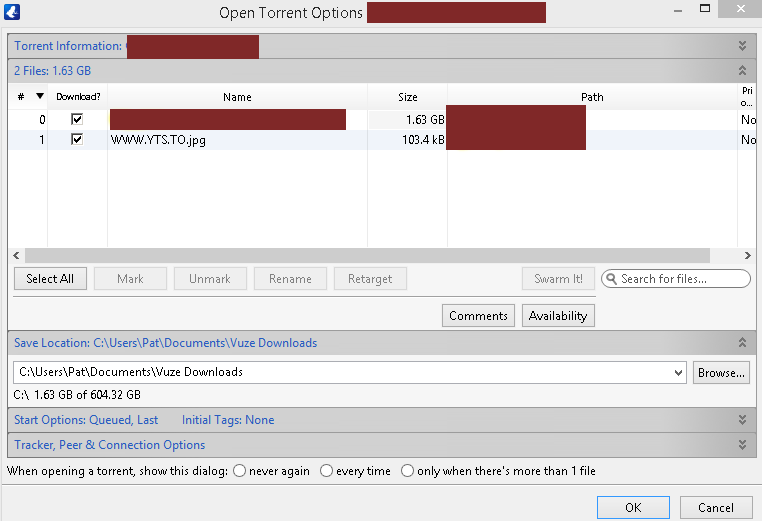
Then, left-click OK on the 'Open Torrent Options' window.

See how under the ETA column it's showing a long time estimate, 7 hours in the sample below, Don't Worry it will shorten significantly as you acquire more peers.

Enjoy more great tips online by visiting us at bcpcorner.com

Sunday, June 14, 2015

Watch movies. Listen to music. Read books for free. Better than ever Before: How to Custom Install Vuze | Advanced Settings | Windows Firewall | Windows 8.1 TIPs | Optimize PC | Speed | Security

How to Custom Install Vuze | Advanced Settings | Windows Firewall | Windows 8.1 TIPs | Optimize PC | Speed | Security


Desktop | Laptop | AIO | Tablet by Pat Lucero

Visit the # 1 CompuTech in the U.S.A.

How to install Vuze. Customized for Safety and Security.

Select all options as shown. Except, ensure to select the radio button with the Classic UI (The last option). Why? Security and Safety.

Next, Slow Down choose to decline all offer windows, basically every window that has a decline button. Use it left-click on 'decline' each time. Why? Prevents Malware plug-ins from infecting your browser.

In "The Welcome to Vuze Configuration Wizard" select Advanced by left-clicking the radio button, then the "Next" button. Why? Protecting your System means you want all the power. To quote a line from the movie 300, "Give them nothing take from them everything".

What's this, final act. Choose wisely, left-click on Manual radio button, then on Next.

Select a port to use, preferably, a port between 10001 and 14999. Just write it down you'll need it for the next section on Windows Firewall below. Always go this connection section within the Vuze interface after the install by holding down "crtl" and tapping the "+" sign. To get here, select on Connection in the list within the left pane interface.

You're learning fast, but to be fast on the web you need Opera.

download here free for Windows.

Hold down the Windows Logo key and tap the "x" key on the list left-click on 'control panel'. Then, left-click on the first column's heading 'System and Security' and then left-click on the 'Windows Firewall' heading. Now, look to the left side pane and select on 'Advanced Settings', second from bottom of list, by left-clicking on it. From the top of Inbound Rules list select 'Azureus/Vuze'.

Left-click on the tab labeled Protocols and Ports

Watch movies. Listen to music. Read books for free. Better than ever Before.

First, get your house in order.

Optimize your PC | Control your Speed and Security

Setup an Inbound rule to use specific ports using a random number let's say 12000 for both TCP and UDP inbound local and remote ports. The listening ports you manually set to 12000 in the Vuze Connection in the above section is what your configuring here to work. Here's a Windows 8.1 Optimize TIP: delete your ProgramData folder Temp files How? Copy and Paste this path C:\programdata\temp to a run line and enter.

Simple hold down and tap the "r" key to get a command run line.

Enjoy more great tips online by visiting us at bcpcorner.com

#StaysNVegas @NYNYVegas #WatchAFlick #Goldenknights #VegasBorn #VegasStrong #StanleyCup #StaysNVegas #DuaLipa #BeTheOne First #solofemaleartist to reach #youtubebillionmilestone #MusicList

#DuaLipa #1 Female Solo Artist first to reach a Billion views on YouTube she is in concert at The #CosmopolitanLV tonight May 19, 2...